Doom 3 Hardware Upgrade Guide
Thinking about upgrading your video card for Doom 3? We benchmarked all the latest GeForce 6800 and Radeon X800 video cards and have recommendations for you. We also take a look at memory configurations and study how CPU speed affects video card performance.
Design by Collin Oguro
Doom 3 managed to scare PC gamers days, weeks, months, and even years before they finally got their hands on the installation CDs last week. Early reports that praised the new engine stoked excitement and anticipation for the game's release, but the increased interest also resulted in heightened anxiety levels for PC owners who were unsure as to whether their systems would be powerful enough to handle id's newest blockbuster.
Many of these PC owners, perhaps scarred by a missing battery incident from the Christmas of '83, vowed to always have an upgraded computer on hand to make sure that Doom 3 would be fully operational upon its release.
The rest of us decided to try playing the game on our current systems before seriously considering upgrade possibilities. If you're part of this group, you probably discovered that the game is indeed playable on PCs that meet the minimum 1.5GHz CPU and GeForce 3 graphics card system requirements, but you also probably discovered that an upgrade would be necessary to get a glimpse of frame rates above 30 frames per second at resolutions higher than 640x480.
The real trouble begins when it's time to figure out how to upgrade, since several system components have an effect on game performance--namely the graphics card, CPU, and system memory. Having a fast CPU will allow you to hit higher frame rates but only if your graphics card is fast enough to keep up. The opposite is also true. A powerful graphics card won't perform like one when it's paired with a slow CPU. However, don't forget about the system memory either, because not having enough can effectively hamstring game performance, no matter what type of CPU or graphics card you have.
The primary focus of this guide will be graphics cards and basic Doom 3 video settings, but we also examine CPU scaling and memory configurations to identify performance bottlenecks that can prevent a system from reaching its full potential.
We benchmarked Doom 3 across eight different video cards that ranged from a GeForce 4 Ti4600 and Radeon 9800 Pro all the way up to the GeForce 6800 Ultra. All frame rate results were obtained using the "timedemo demo1" console command.
Test Systems:
AMD Athlon 64 3000+ CPU, MSI K8T Neo Motherboard, 1GB (512MB x 2) Samsung PC3200 Memory, 250GB Maxtor Maxline III SATA Hard Disk Drive, Windows XP Professional.
Intel Pentium 4 Northwood 3.4GHz CPU, ASUS P4C800-E Deluxe Motherboard, 1GB (512MB x 2) Samsung PC3200 Memory, 250GB Maxtor Maxline III SATA Hard Disk Drive, Windows XP Professional.
Graphics Cards: GeForce Ti4600 128MB, Radeon 9600XT 128MB, Radeon 9800 Pro 128MB, GeForce 6800 128MB, Radeon X800 Pro 256MB, GeForce 6800 GT 256MB, Radeon X800 XT PE 256MB, GeForce 6800 Ultra 256MB.
Graphics Drivers: Nvidia ForceWare 61.77, ATI Catalyst 4.9 Beta.
We used an Athlon 64 3000+ CPU for our video card testing, because the processor is fast enough to show us the performance differences between all of our graphics cards, yet it's affordable enough to be a realistic upgrade option for readers on a budget.
We benchmarked our graphics cards at several different resolutions and quality settings.
In most games, the 640x480 resolution is highly CPU-dependent, but Doom 3's 640x480 setting is graphically demanding enough to tax our older cards. The GeForce Ti4600 and Radeon 9600 XT hit the wall at 45.9 and 58.1 fps respectively.
We see that the frame rate should top out at 70 to 75 frames per second if the graphics cards aren't being challenged. For these cards, the 640x480 test is still more of a CPU benchmark, since we're seeing roughly the same frame rate across a wide range of cards.
When we bump both the resolution and image quality up one notch to 800x600, Medium Quality we see the GeForce Ti4600 and Radeon 9600 XT scores dropping even further. However, frame rates are still playable at 32.5 and 42.9 fps respectively. The Radeon 9800 Pro 128MB also begins to show its limits by running slightly behind the newer cards.
The more powerful GeForce 6800 and Radeon X800 cards continue to cruise along at 70 to 75 fps.
The 1024x768, High Quality setting looks to be the test that separates the contenders from the pretenders. Squeaking by with 9.6 fps, the GeForce Ti4600 slows to a crawl when moved up in resolution and quality. The Radeon 9600 XT also looks vulnerable with its 25.8 fps. We also see the GeForce 6800 beginning to reach its limits, because it starts to trail behind the rest of the pack.
The GeForce 6800 GT, Radeon X800 XT PE, and GeForce 6800 Ultra cards all remain strong, but the Radeon X800 Pro shows signs of fading.
We eliminated the older GeForce Ti4600, Radeon 9600XT, and Radeon 9800 Pro cards from the 1600x1200, High Quality test and consolidated the rest of the cards into a single graph. The Radeon 9800 Pro actually put up a somewhat playable 20 fps, but we decided that it was time for the card to make a graceful retirement, since seeing a graphics card playing past its prime can be uncomfortable to watch.
This new setting really challenges all the graphics cards, and we finally see performance differences between all the new GeForce 6800 and Radeon X800 cards. The GeForce 6800, 6800 GT, and 6800 Ultra cards all produce very strong numbers. The Radeon X800 Pro and X800 XT PE also hang in there, but we're hoping ATI has a few more upcoming driver releases to nudge up those OpenGL scores.
Enabling 4x antialiasing increases the workload, and frame rates drop even further, but the cards still finish in almost the same order as in the 1600x1200 test. Our GeForce 6800's 128MB frame buffer finally met its match, putting up a 3.4 fps slide show.
We're going to break down our video card picks by resolution since each setting will have a different card that offers the best value. At 800x600, we like the Radeon 9800 Pro. It's an affordable card that will get you right up to Doom 3's 60 fps frame rate cap at 800x600.
We like the normal GeForce 6800 for the 1024x768 setting, and those interested in enabling antialiasing or running Doom 3 at 1600x1200 will want to splurge for the GeForce 6800 GT. The GT may not have GeForce 6800 Ultra speeds, but it's considerably less expensive and almost as fast.
You also need to take your CPU speed into account when selecting your graphics card. If your CPU isn't fast enough to maintain high frame rates, then that expensive GeForce 6800 Ultra may not perform much better than a Radeon 9600 XT.
We used our unlocked Intel Pentium 3.4GHz engineering sample to benchmark a GeForce 6800 Ultra, a Radeon 9800 Pro, and a Radeon 9600 XT at 1.6GHz, 2.2GHz, 2.8GHz, and 3.4GHz to illustrate how CPU speed can erase graphics card performance.
All three graphics cards put up equal performances when the processor isn't fast enough to supply an adequate number of frames.
In the earlier graphics card tests, we saw that the Radeon 9600 XT hits the wall at the 800x600, Medium Quality setting, and the 2.2GHz processor is just fast enough to allow the card to reach its peak. However, the GeForce 6800 Ultra and Radeon 9800 Pro cards are still CPU-bound.
Increasing the CPU speed another 600MHz allows the GeForce 6800 Ultra to pull away from the Radeon 9800 Pro just slightly.
The 3.4GHz CPU speed widens the gap between the Radeon 9800 Pro and the GeForce 6800 Ultra.
When upgrading your machine, you want match up your CPU and graphics card to maximize the performance of both components. If you only have a 1.6GHz CPU, that Radeon 9600 XT will perform just as well as a Radeon 9800 Pro. In this case, you'll need to upgrade your CPU before a brand-new graphics card will be able to increase your Doom 3 frame rates.
In our memory tests, we wanted to find out how much system memory Doom 3 requires to run smoothly. We tested 256MB, 512MB, 1GB, and 2GB memory configurations on our Intel Pentium 4 Northwood 3.4 GHz system with a GeForce 6800 Ultra video card. We also tested 1GB and 2GB dual channel memory configurations.
Dropping the system to 256MB sliced 40 percent off of peak performance numbers. Moving up to 512MB increased performance considerably, limiting the performance hit to 25 percent in Ultra Quality. The performance penalty is considerably lower if we move from Ultra Quality to Medium Quality, since the data compression in Medium Quality helps reduce the impact on the memory subsystem.
Doom 3's sweet spot seems to be 1GB of memory, and going from single channel to dual channel gave us a 5 to 6 percent gain in performance. Going up to 2GB did not yield any significant speed increases.
If you have either 256MB or 512MB of memory, it would be well worth upgrading to 1GB. Going up to 2GB, however, won't offer any noticeable improvement for you. On the single- versus-dual-channel conundrum, you might be able to get away with 512MB of dual channel memory but having a solid 1GB would be ideal.
Aside from running out to replace your video card, CPU, and system memory, there are a few simple game settings you can tweak to improve overall performance. The system settings page and the advanced settings page both have several video quality options that players can adjust to heighten their game experiences.
Doom 3 offers four quality levels: Low Quality, Medium Quality, High Quality, and Ultra Quality.
Ultra Quality: According to id's Robert Duffy, the Ultra Quality setting requires a 512MB graphics card to run without a hitch since this setting uses uncompressed data that can take up a lot of memory space. Shuffling all this data around can cause some slowdown.
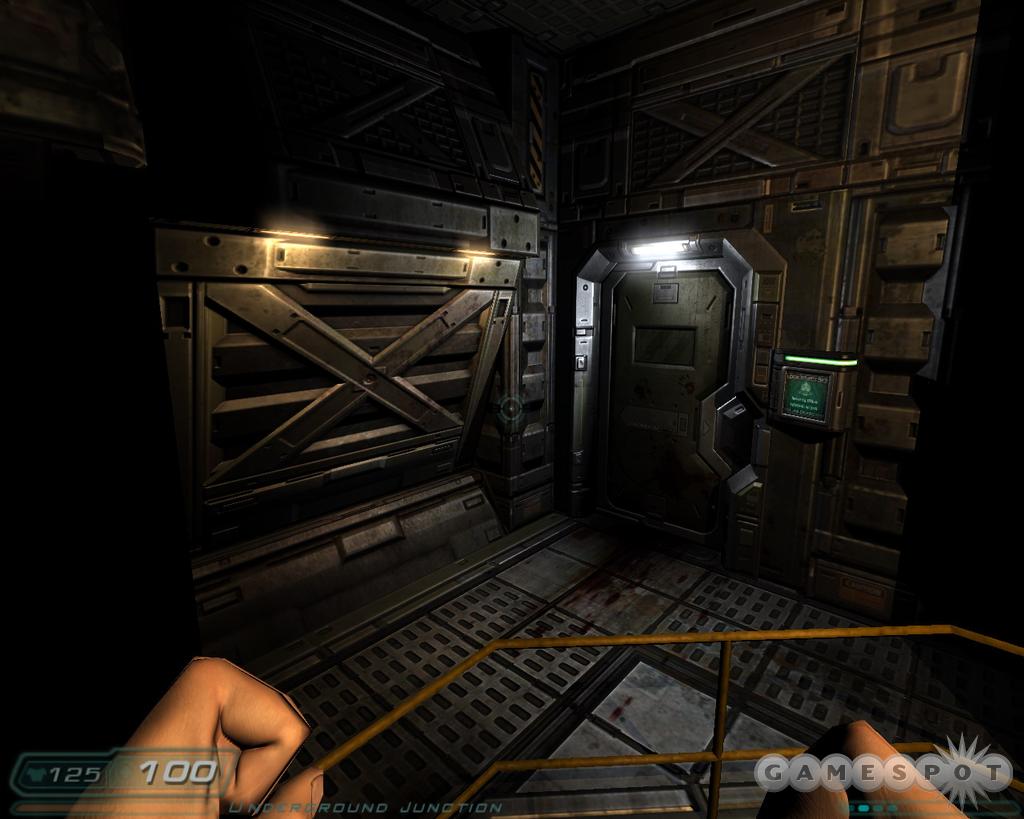 |  |
High Quality: The High Quality mode is recommended for 128 to 256MB graphics cards. This setting compresses specular and diffuse maps but not normal maps. Going back to Duffy, High Quality "looks very, very close to Ultra Quality, but the compression does cause some loss."
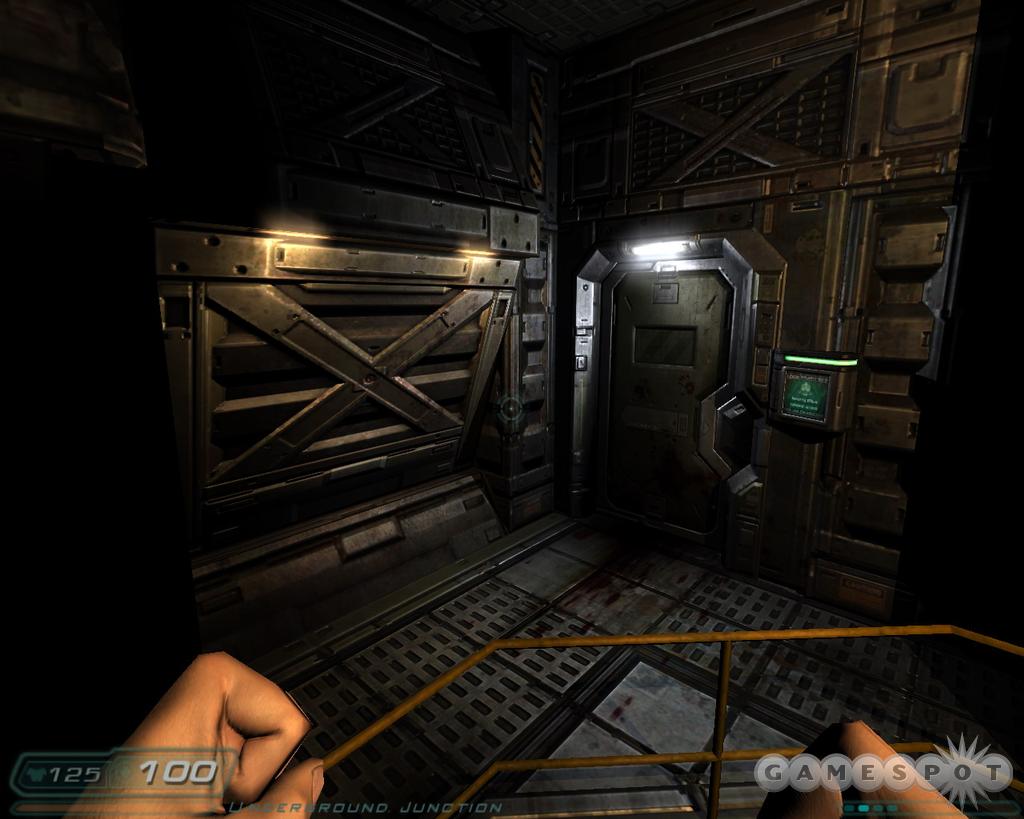 | 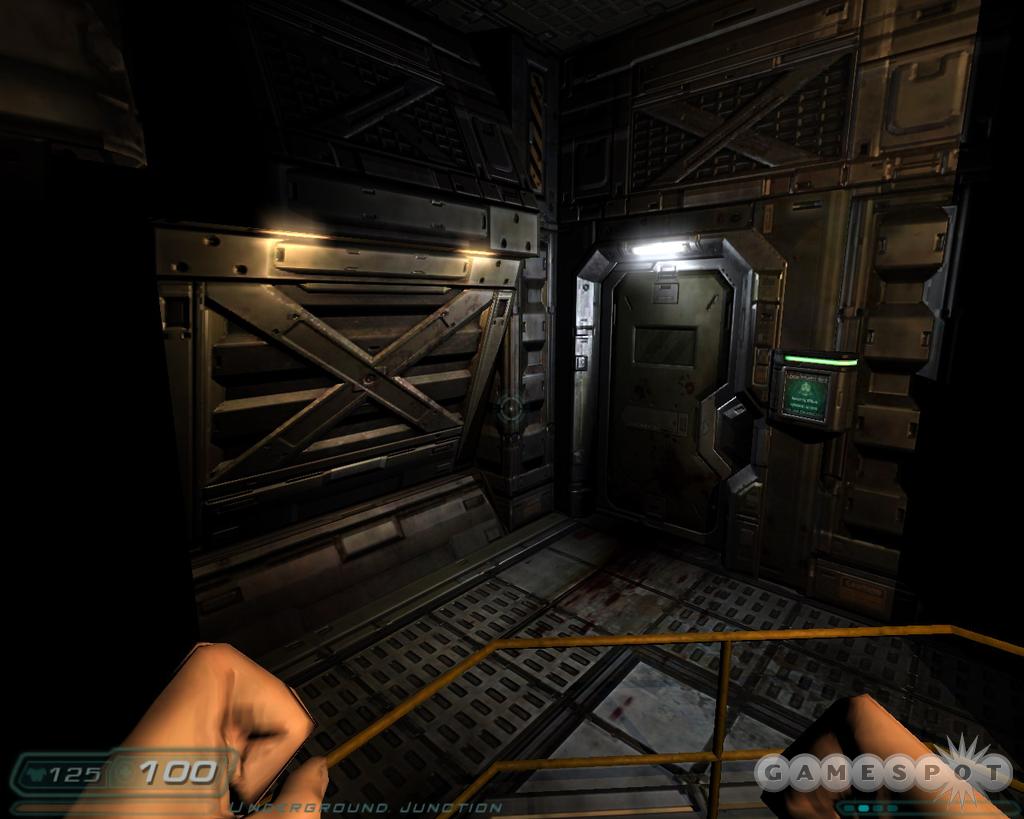 |
Medium Quality: This setting uses compression for specular, diffuse, and normal maps.
Low Quality: This setting is meant for those poor souls who only have 64MB video cards in their systems. It basically represents Medium Quality but with downsized textures. Textures larger than 512x512 are resized to better fit into the graphics card's limited frame buffer.
Doom 3 has an automatic video quality setup feature that scans your hardware and sets the "optimal" resolution and video quality setting. For the most part, this feature works well, but the optimal settings can be somewhat conservative. You might be able to get away with increasing the resolution or video quality settings to one notch above the tool's optimal recommendations.
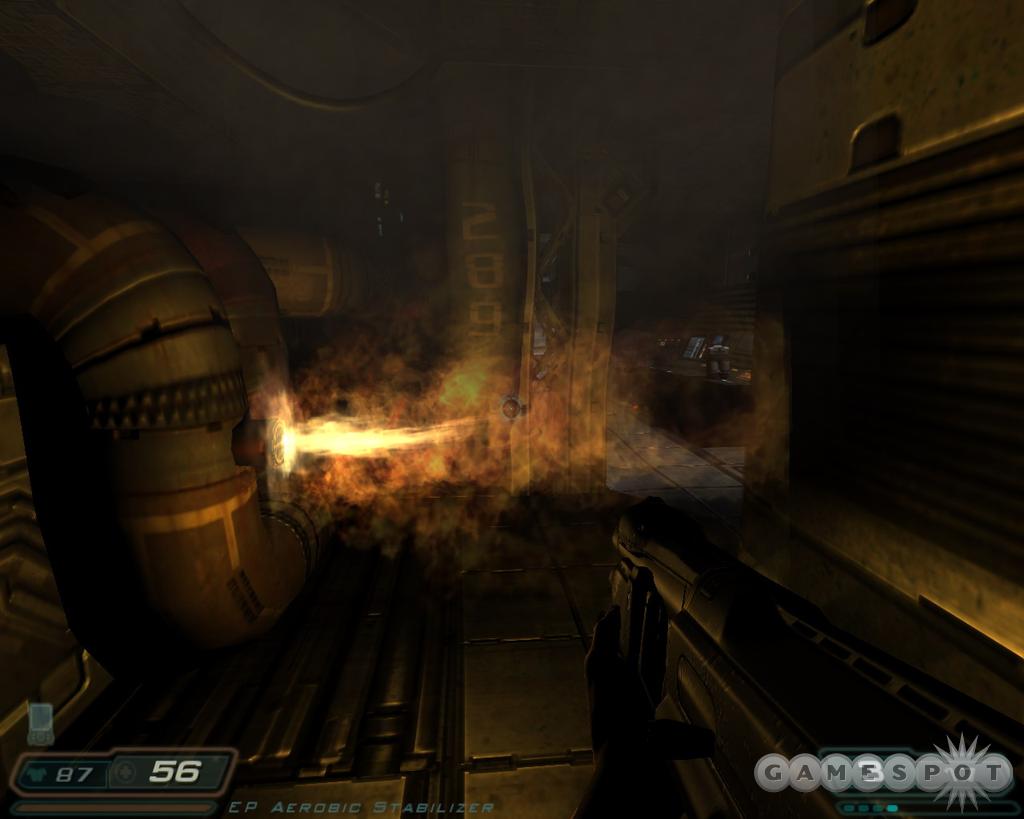
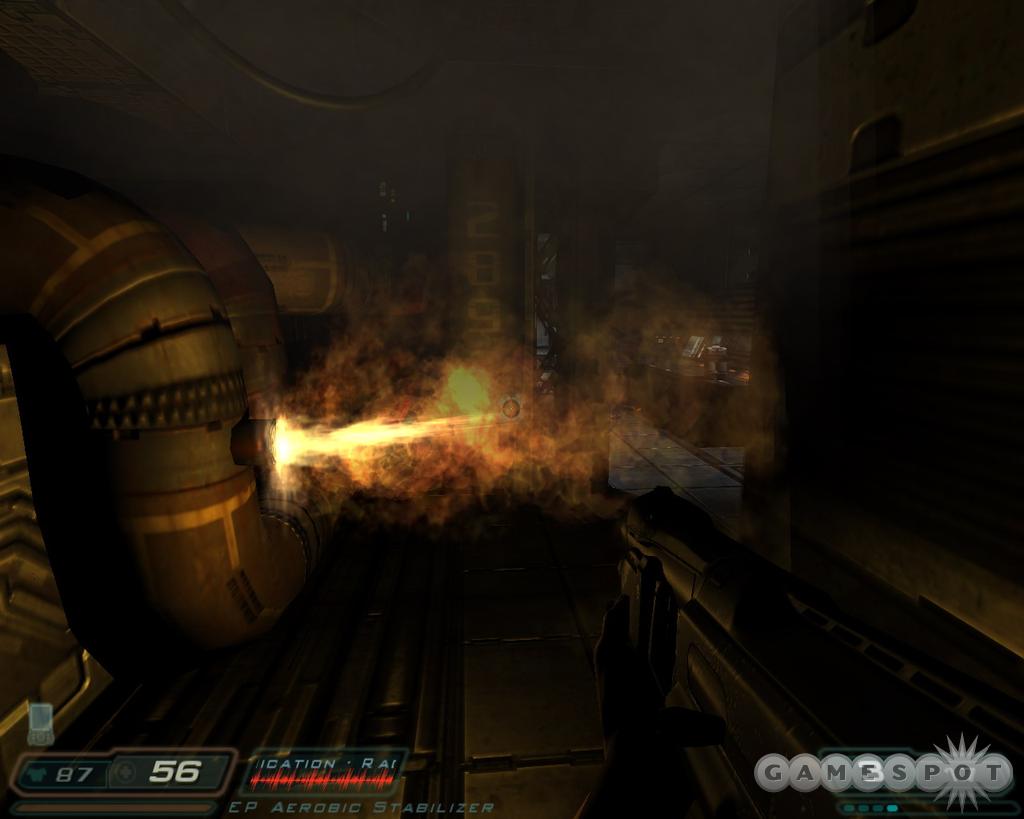
High Quality Special Effects: This setting enables all the heat flares and image warping in windows. If you're looking at a fire in the game, the area just above the flame will have the same heat-wave effect that can be seen in real life. Look at the numbers behind the flame and at the pillar to the right of the flame in the screenshots we've provided. Both appear to be distorted by the heat effect. The still images really don't do the effect justice, because they look more impressive while in motion.
 |  |
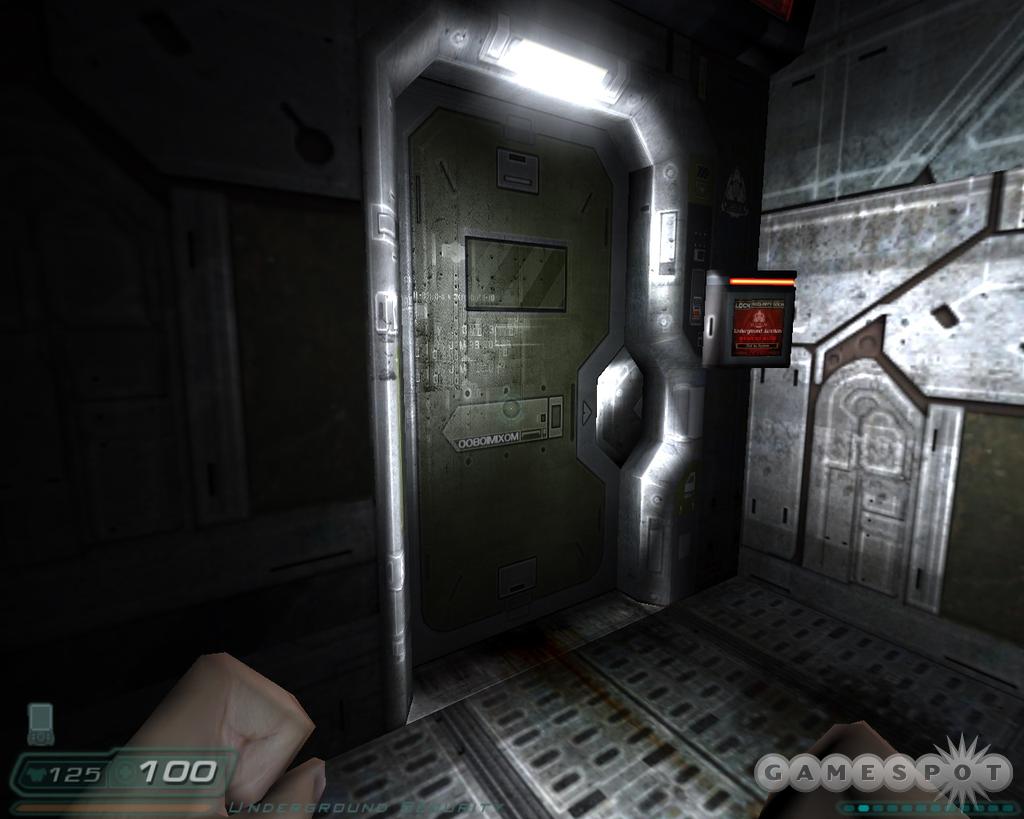
Specular Lighting: This enables shiny surfaces in the game. The walls and doors give off a nice sheen with this option toggled on. Turning off specular lighting makes the game much uglier, since most of the surfaces in the game are metallic in nature.
 |  |
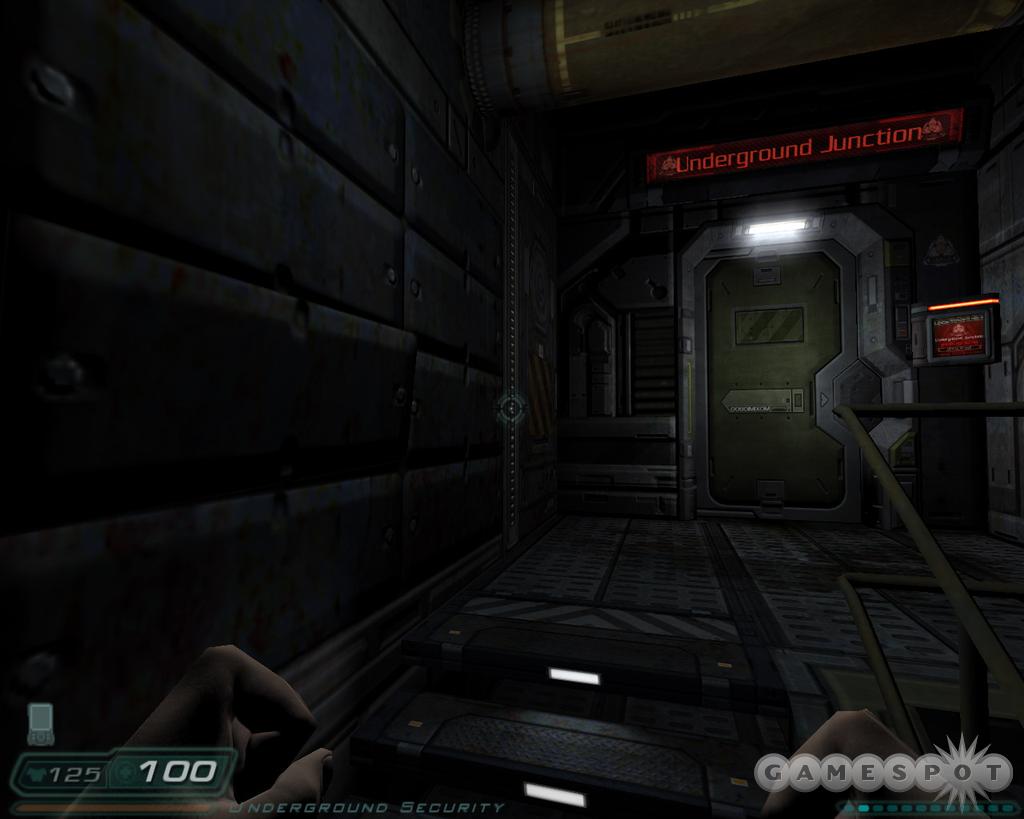
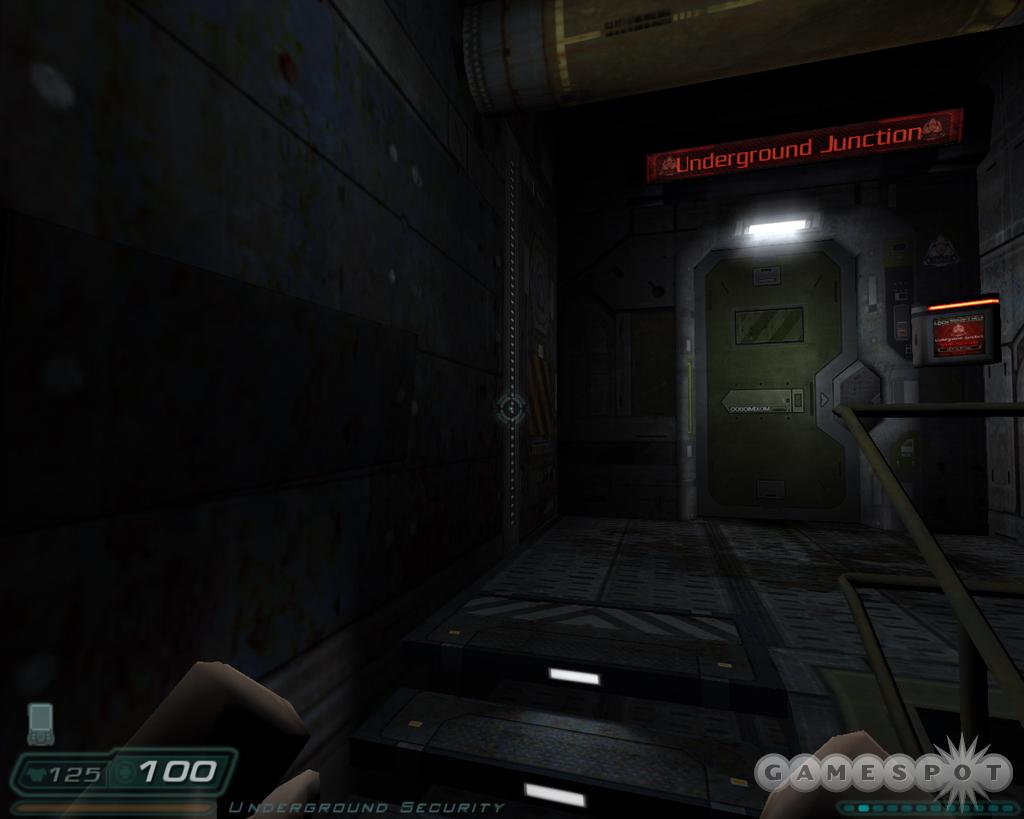
Bump Mapping: Like it sounds... It makes bumps. Well, not exactly. It's more like imaginary bumps. These bumps are added to surfaces to demonstrate a height effect. As in real life, a flat concrete floor isn't completely flat. There are little cracks and crevices that give the floor a rough texture. Bump mapping allows the game to simulate these cracks and crevices with shadows.
 |  |
Shadows: Shadows are the most noticeable effect in the game. Disabling this option will improve your frame rate, but doing so will take away from the game experience.
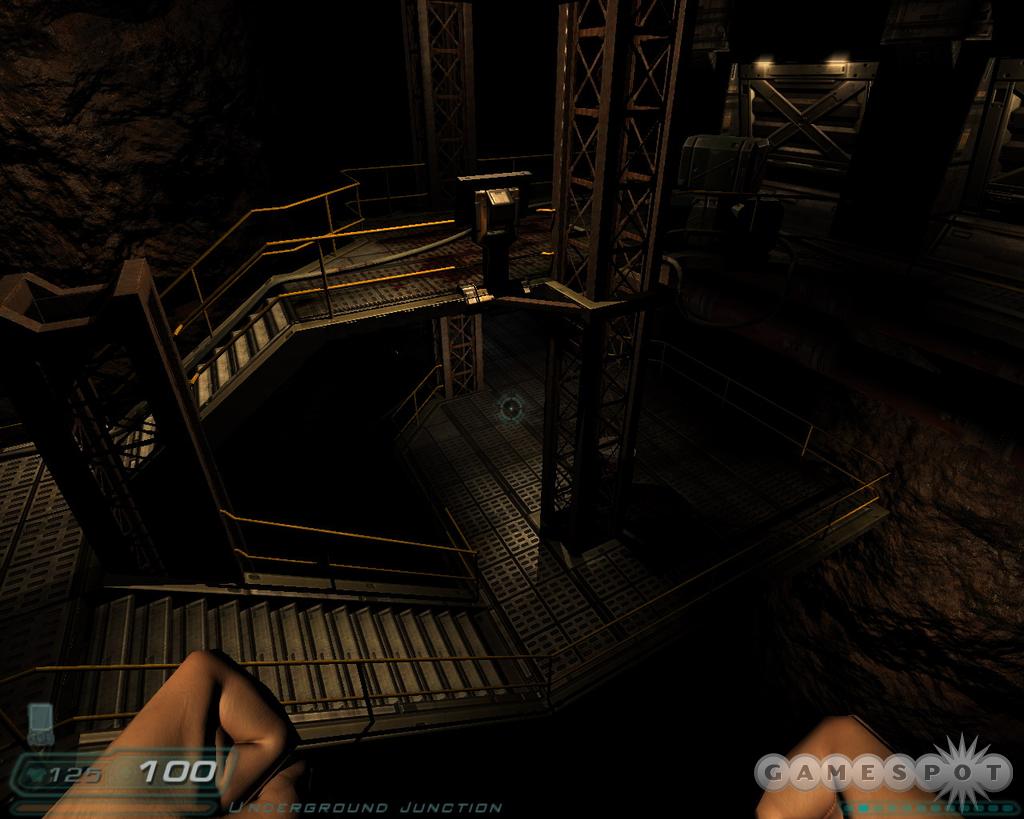 | 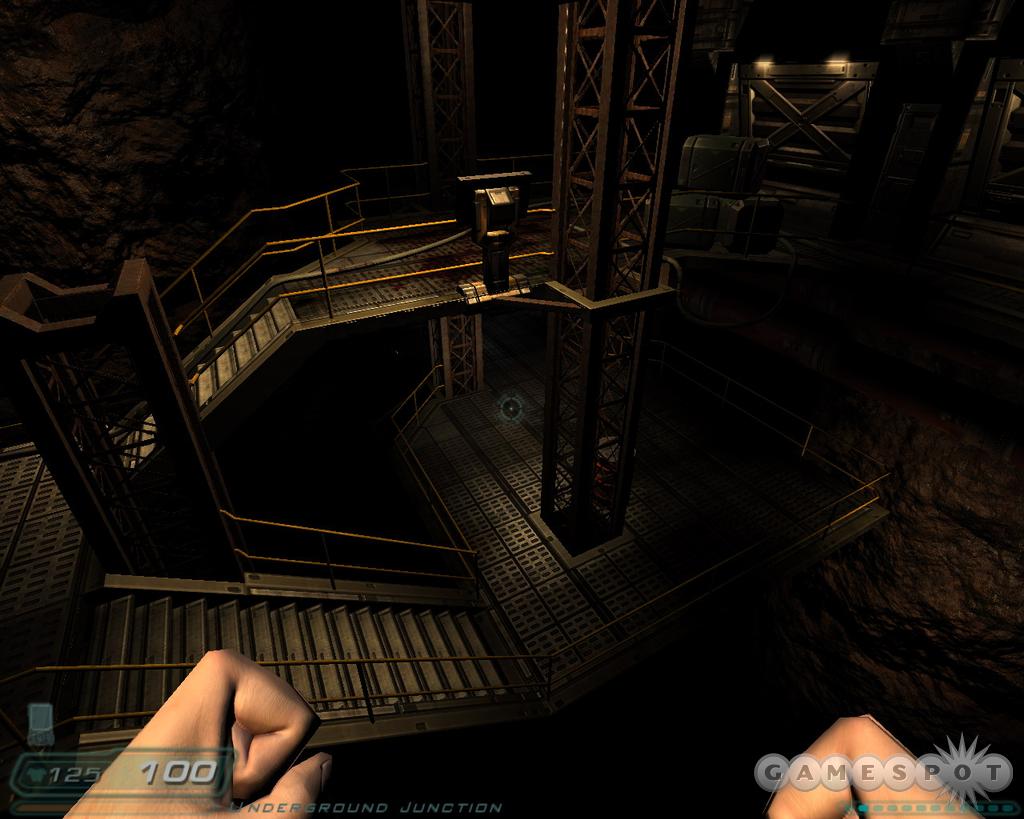 |
We went through to benchmark what kind of frame rate effect each of the advanced settings has on two system setups: an Intel P4 1.6GHz CPU with a GeForce4 Ti4600 and 512MB of memory and an Athlon 64 3000+ CPU with a Radeon 9800 Pro and 1GB of memory.
The performance gains on the low-end setup were rather small when we disabled the advanced effects. It's debatable whether you would even want to bother disabling the effects for such minor frame rate gains. The mid-range setup showed considerable gains with shadows disabled. The other effects took only a slight toll, nibbling a mere four frames per second.
Disabling shadows offers the largest gain in frame rate, but you might not want to disable the one feature that gives Doom 3 its unnerving atmosphere. All the other settings have almost no effect on performance, so you might as well leave them on to benefit from the extra eye candy.
Doom 3 Video 1: Advanced Settings Disabled
Doom 3 Video 2: Shadows Disabled
Doom 3 Video 3: Only Shadows Enabled
Got a news tip or want to contact us directly? Email news@gamespot.com
Join the conversation